
Ungating ASINs in Bulk
Boxem’s Bulk Ungating feature helps you easily find which ASINs are ungated for your Seller account and which ASINs require approval to sell.
Note: During the free trial period, you can scan up to 1,000 ASINs.
To use this feature, click Bulk Ungate from the left menu.

Once on the Bulk Ungate page, you manually enter ASINs, upload files containing ASINs, or run a check for suggested ASINs.
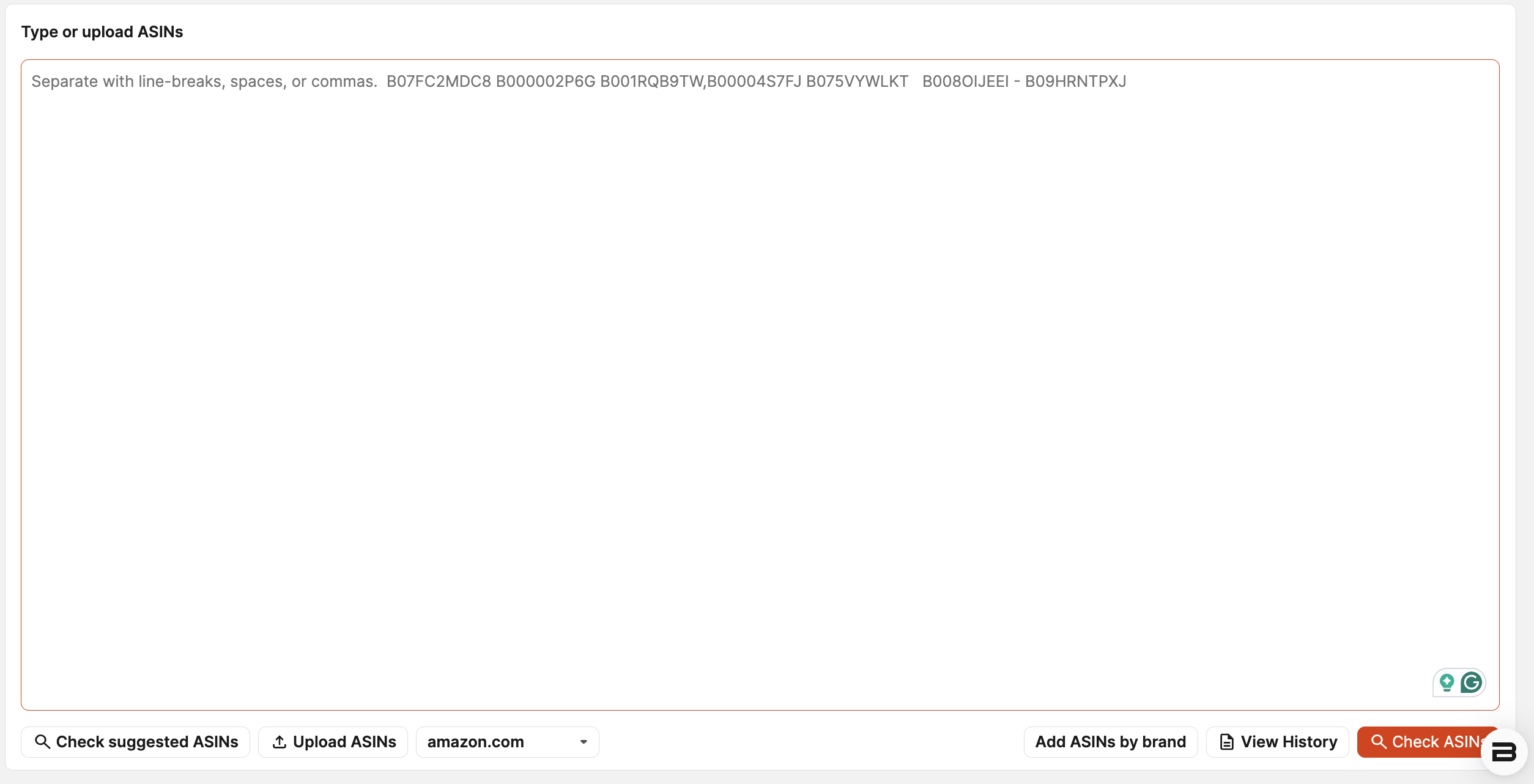
When manually entering multiple ASINs, be sure to separate them with line breaks, spaces, or commas.
To upload files containing ASINs, click Upload ASINs and select them.
Note: Files must be textual and saved in formats such as .csv or txt.
Once the ASINs you want to check have been entered, click Check ASINs to proceed to the next step.

Or, if you're not sure where to start, run a check for ASINs that are likely to be auto-ungated by clicking the Check suggested ASINs button.

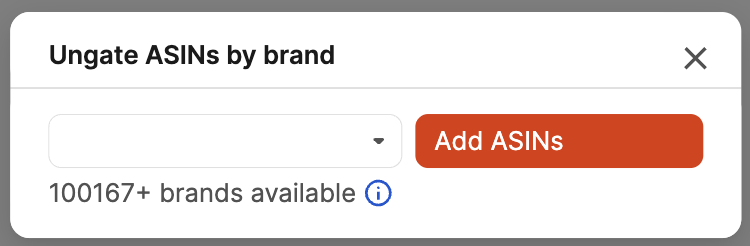
You can also run checks for ASINs by brand by clicking the Add ASINs by brand button.

Search or select the brand you'd like to check, then click Add ASINs.
Note: The "ASINs by brand" option doesn't search the entire Amazon catalog. Instead, it searches a large database of commonly sourced brands and ASINs.
In the next step, you’ll see the ASINs organized into tabs by status: Ungated, Gated, and Restricted.
The Ungated tab shows a list of the auto-ungated ASINs that you are currently allowed to sell and any new brands that have been unlocked.

The Gated tab shows a list of ASINs for which you need approval to sell.
To apply for approval, click the Ungate button. This action will open the page in Seller Central where you can apply for approval.

The Restricted tab shows a list of ASINs you cannot currently sell. At this time, they cannot be ungated.

To keep a copy of the ASINs you checked and their statuses, click the Download report button.

Note: If the ASINs you are checking are still loading, you can download a partial report before the process is finished.

Reports from past scans can be downloaded by clicking View Past Reports on the Inventory page.
