
Restock Feature
Stay ahead of restocks and never miss a buying opportunity. Boxem’s Restocking feature helps you monitor inventory levels, track price changes, and quickly identify low-stock items worth purchasing for your Amazon store. Use it to make smarter sourcing decisions and keep profitable products in stock.
Note: This feature is currently in beta and is available exclusively to Boxem Professional subscribers. If you encounter any issues or bugs, please let our support team know.
To use this feature, click Restock from the left menu.

Adding Products
To add a product, click + Add new.

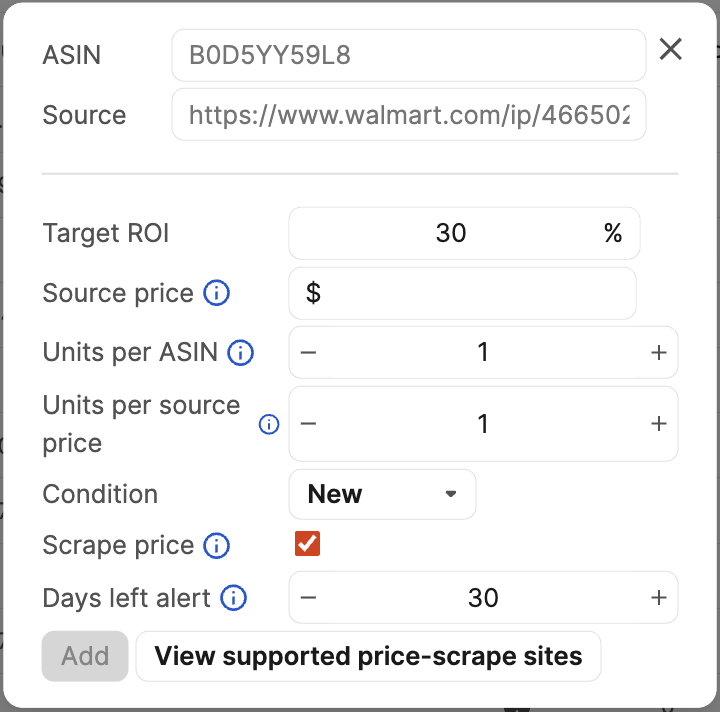
A modal will open where you can enter the following details for the product:
- ASIN (Required)
- Source URL - Copy/paste the URL from your sourcing website
- Target ROI%
- Source Price - To be used if scraping from the source URL fails
- Units per ASIN - The number of units you sell for a single ASIN/SKU of this product on Amazon
- Units per source price - The number of units you’ll purchase from the source website
- Condition
- Scrape price - Check this box to use the price from the source URL
- Days left alert - The number of lead days. When the table shows fewer days than what’s entered here, it will highlight.
After entering these details, click Add to add the product to the table.
Daily Sale Average
This section allows you to control your restocking preferences, including rules for highlights products that may need to be reordered soon and weighted sales/day calculations based on recent sales performance.
Days of Stock Left Before Restock Highlight
Use this field to set a default number for lead days before a product is highlighted in the table.

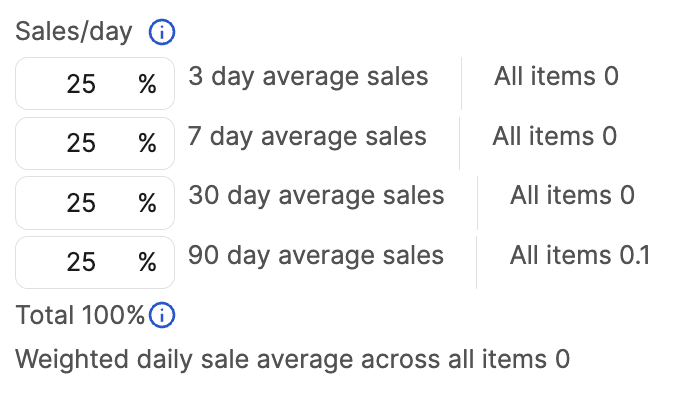
Sales/Day
A weighted daily average in restocking is an inventory management technique that calculates the average daily sales by giving more importance (weight) to recent data or specific, high-volume periods, etc.
Unlike a simple average, which treats all days equally, this method adjusts for fluctuations in demand or price, ensuring restocking orders align with current trends rather than outdated history.
To set the level of importance (weight) for certain timeframes of data, adjust the percentages on in the Sales/day fields accordingly. The available timeframes are:
- 3-day average sales
- 7-day average sales
- 30-day average sales
- 90-day average sales
Note: Boxem will automatically divide these values so that they add up to 100%.
Price Scrape Site Discounts
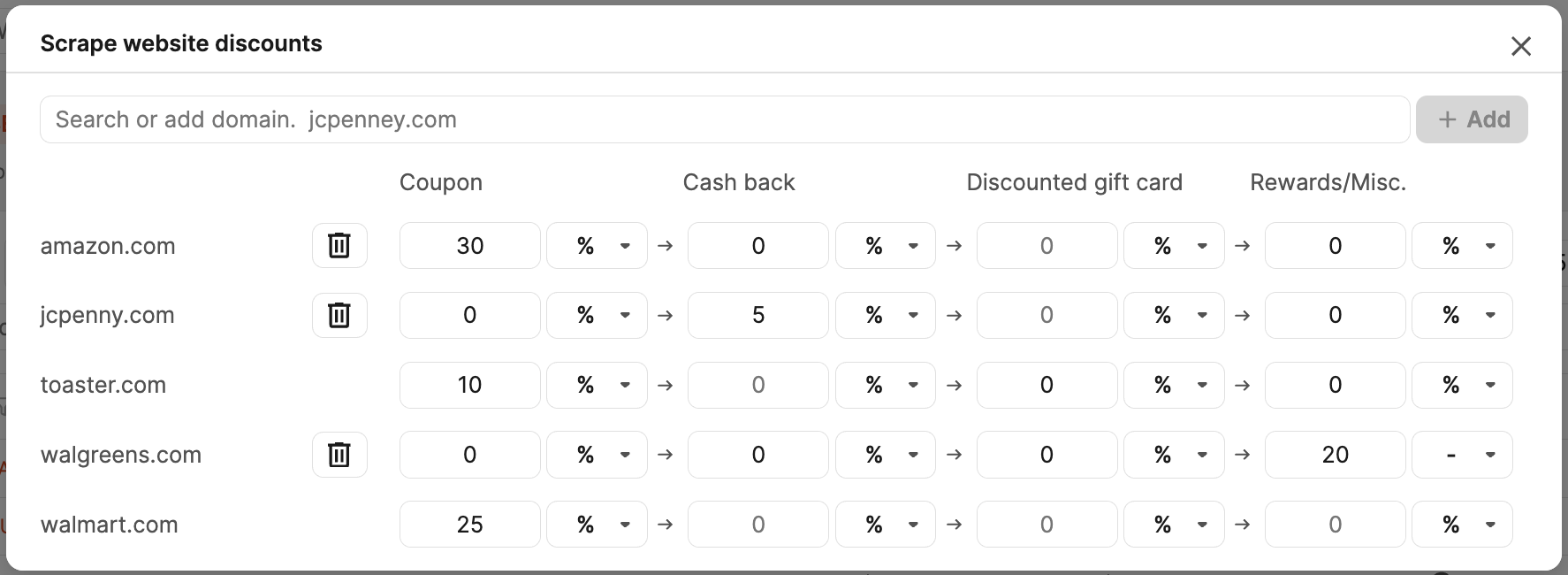
If you have discounts for the source sites of your products, enter them here.

To add a new discount, enter a domain in the search field, then click + Add.
Enter the coupon, cash back, discounted gift card, or reward amount(s).
To delete an entry, click the trashcan icon.
Import CSV
Click Import CSV to add multiple products or update existing products in bulk.
Choose the file from your computer.
Note: Ensure the file includes an ASIN column; it is required.

Boxem will attempt to map the columns in the files for you. If needed, adjust the mapping by selecting the different column titles available in your file.
Click Add and/or Update items to add or update the product(s) on the table.

Export CSV
Click Export CSV to download a file with the table data to your computer.
Before exporting, click the Only export if source checkbox if you only wish to include products in the file that have a source URL.

Viewing the Table
You can use the search bar to find products by name, SKU, FNSKU, ASIN, UPC, ISBN, EAN, or GTIN.
Choose the data shown by clicking the Columns button, then click the checkboxes next to the columns you'd like to see.
If you want to change the order of the selected columns, click and drag them up or down to the desired position.
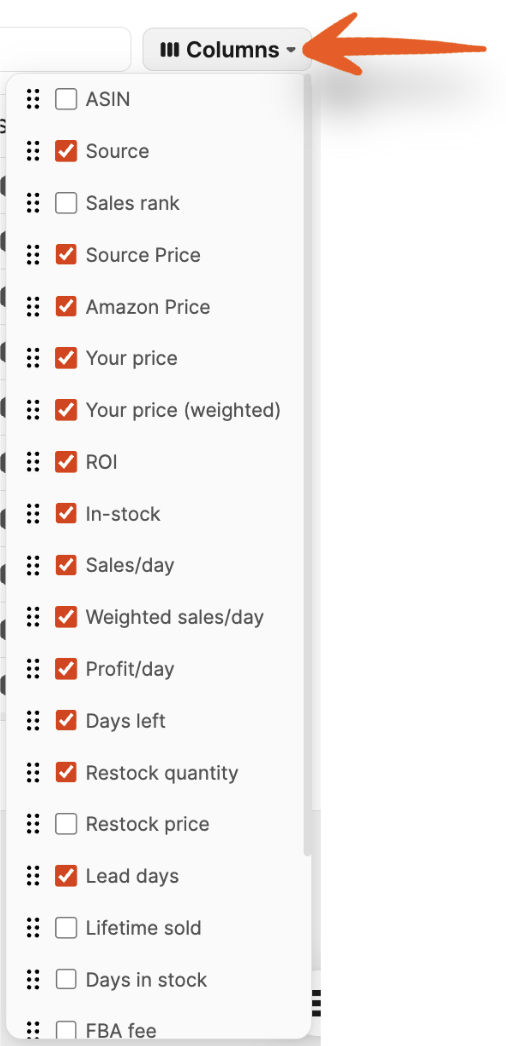
The available columns are:
- ASIN
- Source
- Sales Rank
- Source Price
- Amazon Price
- Your Price
- Your Price (Weighted)
- ROI
- In-stock
- Sales/Day
- Weighed Sales/Day
- Profit/Day
- Days Left
- Restock Quantity
- Restock Price
- Lead Days
- Lifetime Sold
- Days in Stock
- FBA Fee
- Length
- Width
- Height
- Weight
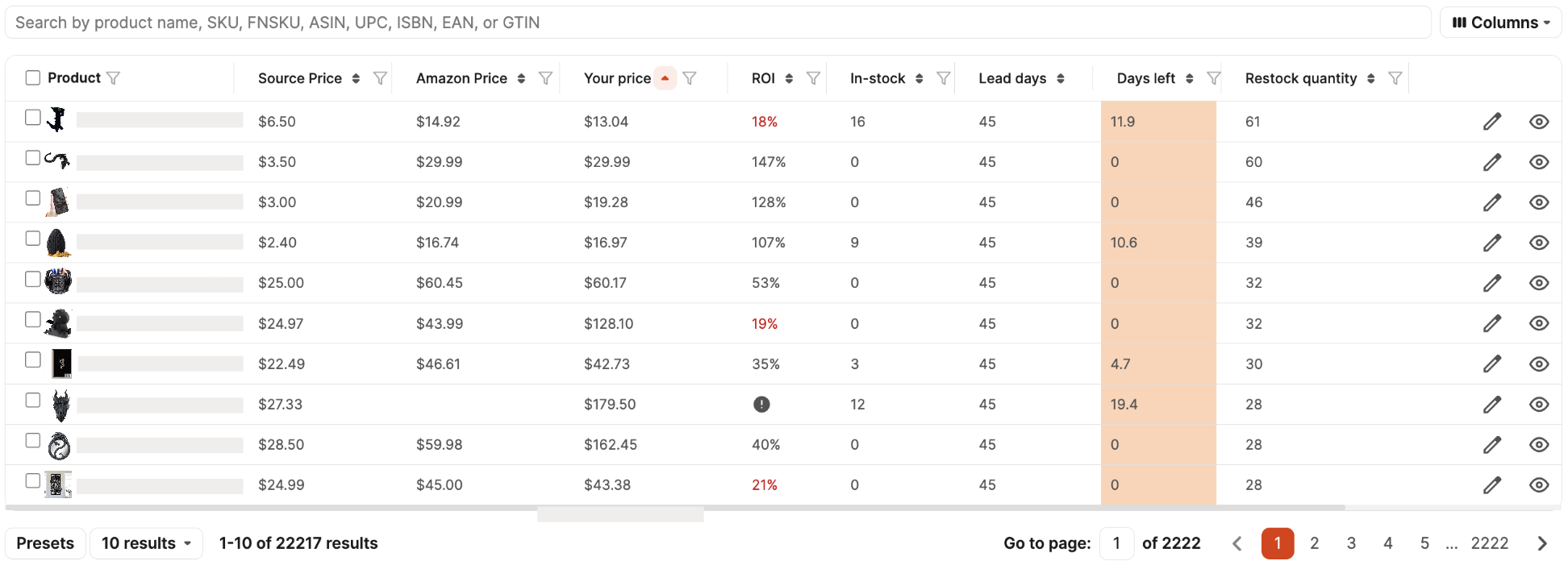
All columns are sortable by clicking the arrows next to them.
To apply a filter to a column, click the filter icon.
Editing/Hiding Products
To edit an existing product on the table, click the pencil icon.

To hide when sorting by "Days left" for a certain number of days, click the eye icon.

You can adjust how many days a product will remain hidden using the setting at the top of the page.
