
Rollo Printers
Rollo printers are compatible with Boxem Print. We currently recommend the following FNSKU label sizes:
Mac & Windows:
- 2.25x1.25 (30334, no holes)
- 4x6 MUNBYN
Amazon's guidelines for labels can also be found here: Amazon barcode label requirements
Note: We recommend making a custom label size for your Rollo to match your label selection in Boxem. More info here: Rollo Printers - Setting up a Custom Label Size
Setup
To set up your Rollo printer with Boxem Print, follow the steps to Use Boxem Print in the following article: Print Settings
Troubleshooting
First, check to ensure that Boxem is connected successfully to Boxem Print.
In Boxem, click Settings from the left menu, then select Printing.

If it's connected, you'll see a banner saying "Successfully connected to Boxem Print!" at the top of the page.

If the message says the connection failed, ensure Boxem Print is open and running on your computer. If it's not, open it from your computer's applications, then refresh your browser.
You'll also want to confirm that your computer has the correct version of Boxem Print installed.
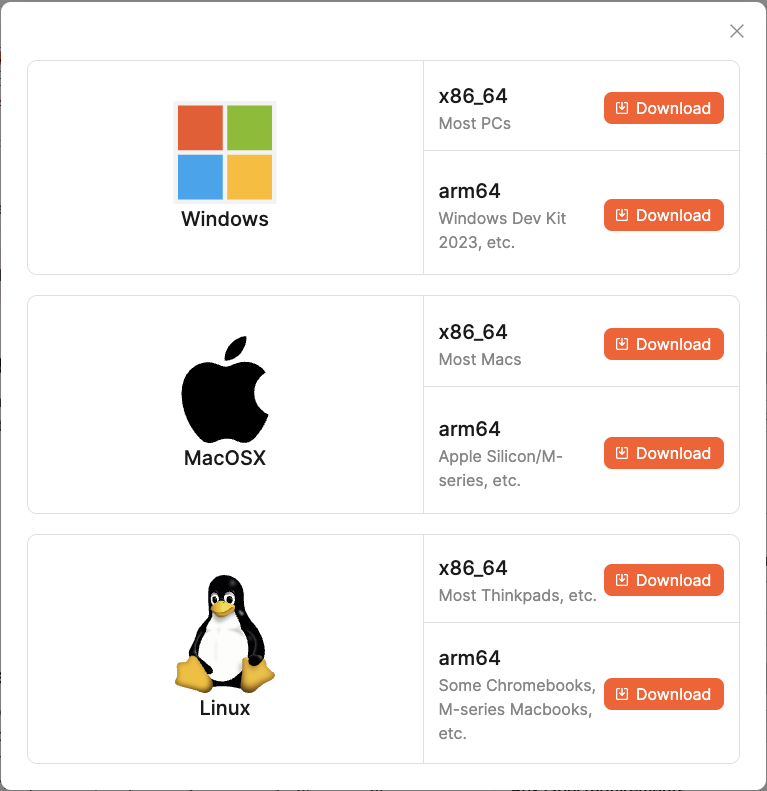
Next, make sure you have the latest Rollo drivers installed on your computer. A link to download them can be found here: Rollo printer setup
Labels Printing in the Wrong Orientation
USB Rollo Printer (non-wireless)
First, try running the automatic label identification process with your Rollo printer.
To do this, insert your labels into the Rollo printer, set the adjustment slides, and close the lid. Press and hold the top circle button until it beeps one time. The Rollo printer will analyze the label size.
A video showing these steps can also be found here: Rollo intro video
Once the label identification finishes, try printing a test label from your Boxem print settings. If it prints correctly, you're good to go!
If the orientation is still off, you'll need to create a custom label size within your Rollo's settings. For steps to help with this, check out this article: Rollo Printers - Setting up a Custom Label Size
Rollo Printer (wireless)
You'll need to access the Rollo Printer Portal within the Rollo App and create a custom label size for your FNSKUs. For steps to help, click here: Rollo Printers - Setting up a Custom Label Size