
How to Clone a Shipment
There may come a time when you need to change the products in a shipment or encounter an issue that prevents you from completing it. To simplify the process of recreating a shipment, you can duplicate them, which will return you to Step 1 with the products and quantities already added. From there, you can make any necessary changes before processing it.
To duplicate a shipment, click the vertical ellipsis at the top of the page and select Duplicate Shipment from the menu.
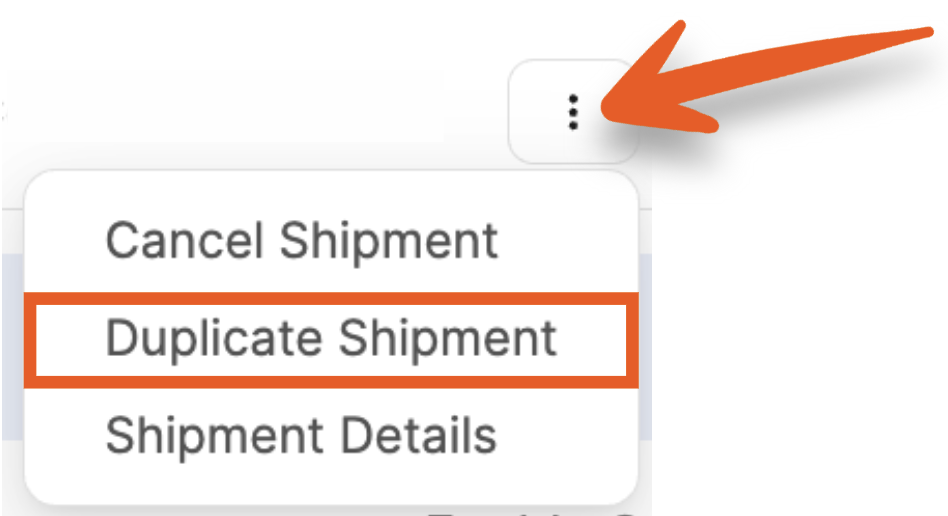
A modal will open where you can make selections based on what you'd like to do with the cloned shipment.
Cancel Current Shipment
If you don't plan to complete the original shipment, click this checkbox to cancel it automatically. If you'd like to keep the original shipment, leave this checkbox unchecked.
Clone all SKUs
If the original shipment was split into multiple warehouse destinations, you'll see this option. When this box is checked, all SKUs and units for the related shipments are cloned to a new shipment. If unchecked, only the SKUs and units for the selected shipment will be cloned.
Recreate Boxes in Prep & Boxem
If you'd like to keep the same number of boxes as the original shipment, click this checkbox. To start over with creating your boxes, leave this checkbox unchecked.
Note: For LTL shipments, cloning for multiple shipments is not currently supported, and pallets do not clone.
Place Items in Boxes in Prep & Boxem
If the "Recreate Boxes" option is checked and you'd like to keep the same products assigned to the boxes as the original shipment, click this checkbox. To start over with assigning the products to boxes, leave this checkbox unchecked.
Once you've made your selections, click Clone Shipment or Cancel and Clone Current Shipment.

Note: When duplicating a shipment, details such as the Ship From Address and Box Content Setting will be retained. These can be changed by clicking "Shipment Details" while on Step 1 if needed.