How to Create Your First Amazon FBA Shipment (Step-by-Step Guide)

1
min read
October 28, 2026
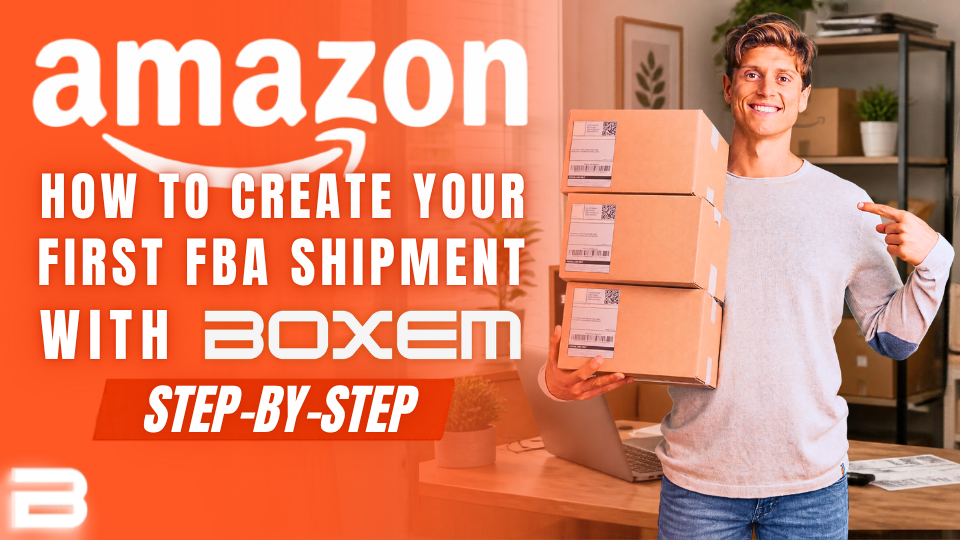
Getting your first Amazon shipment ready can feel like a lot of work. You'll need supplies, properly labeled products, and a plan to get your inventory to Amazon without wasting money.
The good news? Boxem makes it easier to create your shipment, save on placement fees, and print your labels all in one place. Here's how to get started.
Keep Shipping Supplies Simple
You don't need to spend a fortune on shipping supplies when you're just getting started. A few basics are enough, and you can find most of them at stores like Walmart or online.
- Shipping boxes: Medium and large corrugated boxes from Walmart, Home Depot, Lowe's, or ULINE work well.
- Clear poly bags: Use bags with the required suffocation warnings for products that need protection.
- A thermal printer: Printing labels in batches saves time. Rollo printers work with Boxem, but other compatible thermal printers can work too.
- FNSKU labels: These identify your inventory as belonging to your Amazon seller account.
- 4x6 labels: Use these for UPS shipping labels and Amazon FBA box labels.
You can always buy more supplies as your business grows. Start with the basics and restock based on what you use most.
Plan Ahead for Optimized Placement
Here's how you can make your first shipment work harder for your business.
Optimized placement lets you split inventory across multiple Amazon fulfillment centers from the start, helping you avoid placement fees and reduce the need for Amazon to transfer your products between warehouses.
That can mean lower shipping costs and fewer delays before your inventory is ready to sell, helping you get your money back faster and buy more inventory.
The key is to plan ahead. Optimized placement requires at least five boxes with evenly distributed inventory, so keep this in mind when purchasing products. For example, buying 20, 25, 50, or 100 units lets you divide your inventory into five equal groups.
The Difference for Your Business:
1. List Your Products in Boxem
Before shipping, your products must be listed in your Amazon seller account.
In Boxem, go to List FBA and search by ASIN or UPC. Create a SKU and enter your buy cost, supplier, and purchase date.
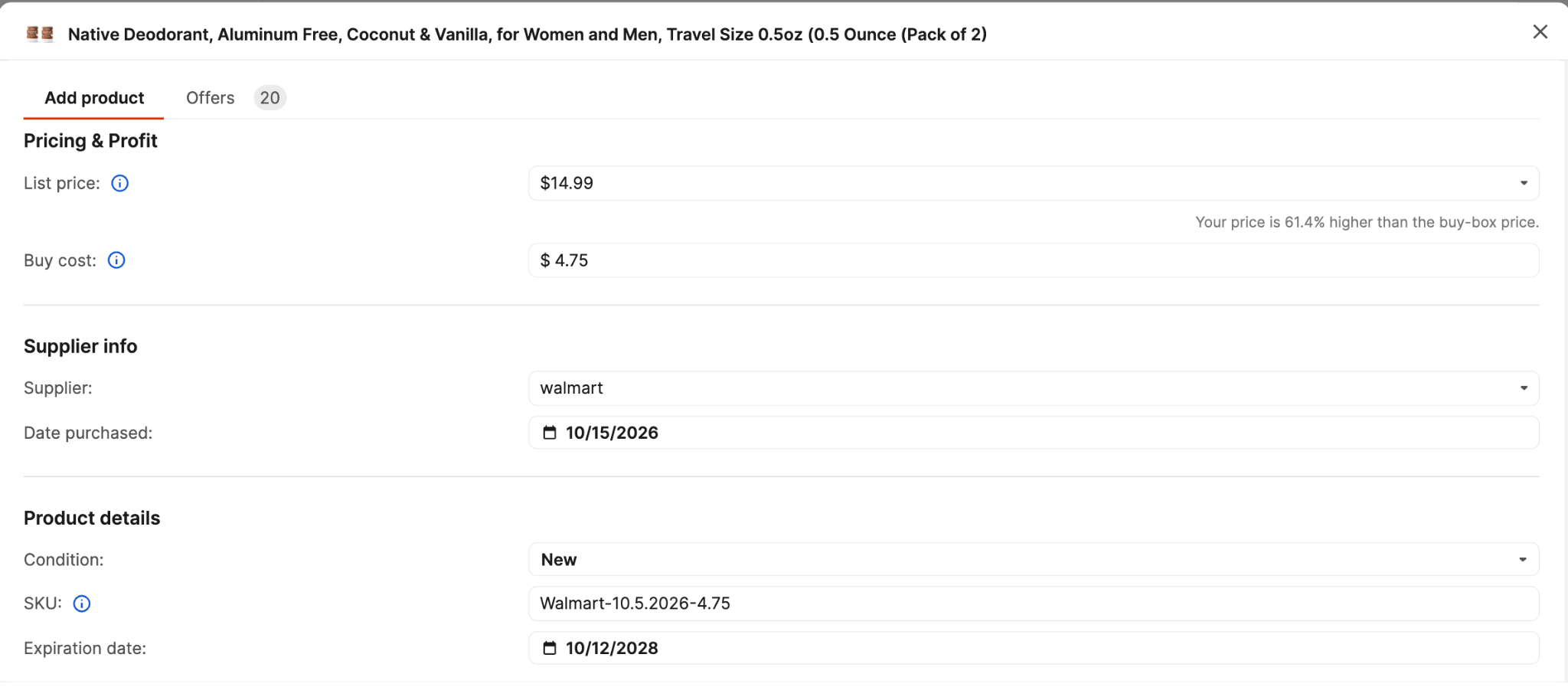
Don't skip the buy cost! Boxem uses it to help calculate profitability after Amazon fees and other expenses.
Custom SKUs can also help you track where and when you sourced products. For example, including the supplier and purchase date can make it easier to track where you sourced a product.
Submit your new listings and allow 15–60 minutes for Amazon to make them available for shipment creation.
2. Create Your Shipment
Once your products are ready to add to a shipment, select Create Shipment in Boxem.
Start by naming your shipment and entering your ship-from address. This should be the address where your inventory is shipping from, not the UPS drop-off location.
For a typical beginner shipment, you'll use SPD (Small Parcel Delivery) rather than pallet shipping.
You'll also choose your box-content method. For optimized placement, select Boxem-provided box contents because optimized shipments can't be combined with the 2D barcode option.
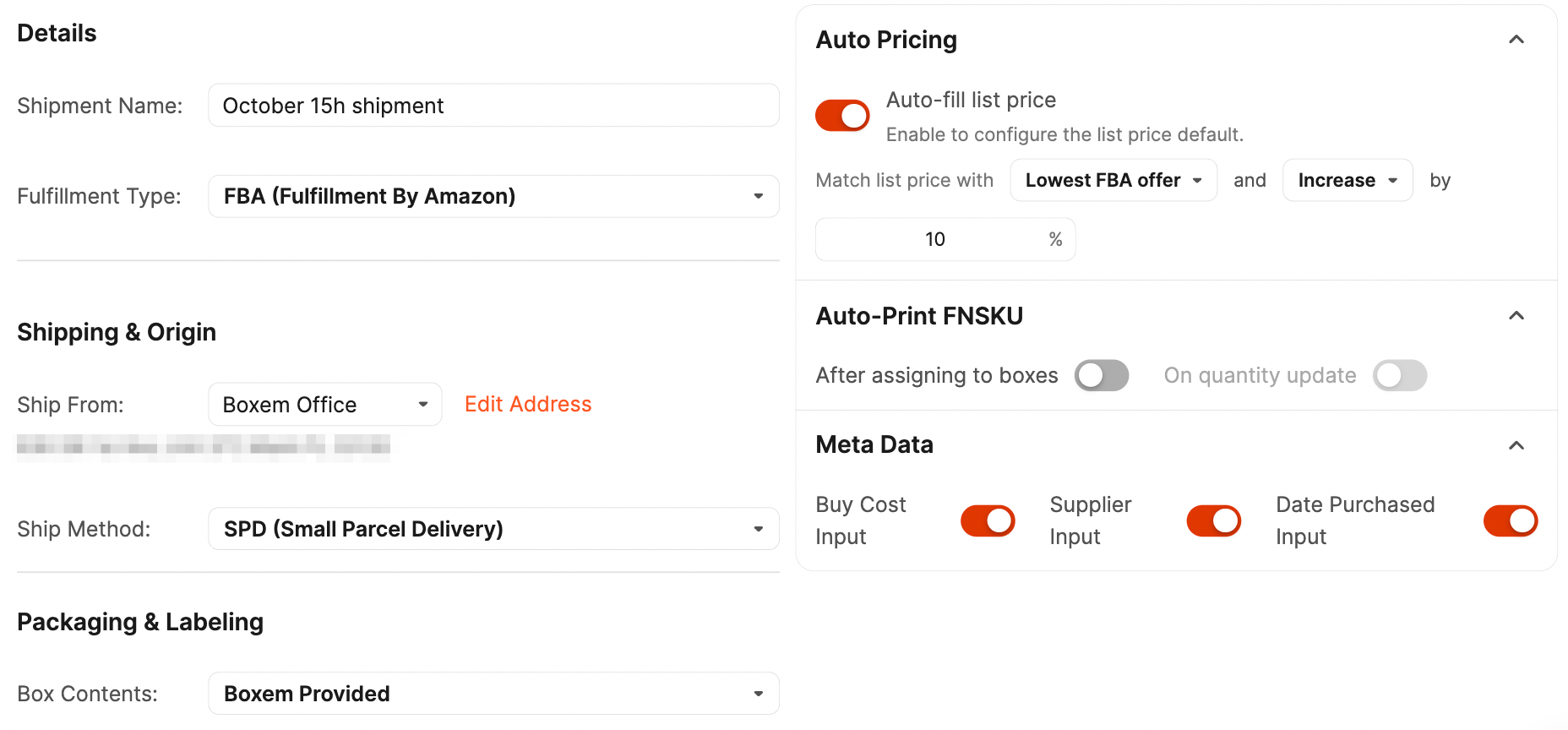
Now you're ready to add your products. Select the items you’ve listed, enter your list prices and quantities, and provide any required details, such as expiration dates and prep information.
Once everything looks right, submit the shipment to Amazon and move on to packing.
3. Pack & Optimize Your Shipment
Before packing your boxes, print and apply FNSKU labels to cover the existing barcodes on your products.
Now it’s time to prep and pack your products so they qualify for optimized placement. For example, if you’re sending 100 units of Native Deodorant and 50 units of GAP Men's Soft Crewneck T-Shirts, create five identical boxes and distribute them evenly.
Each box would get:
- 20 units of Native Deodorant
- 10 units of GAP Men's Soft Crewneck T-Shirts
To save yourself from the math, select all five boxes and use Boxem's split feature to distribute your inventory evenly.
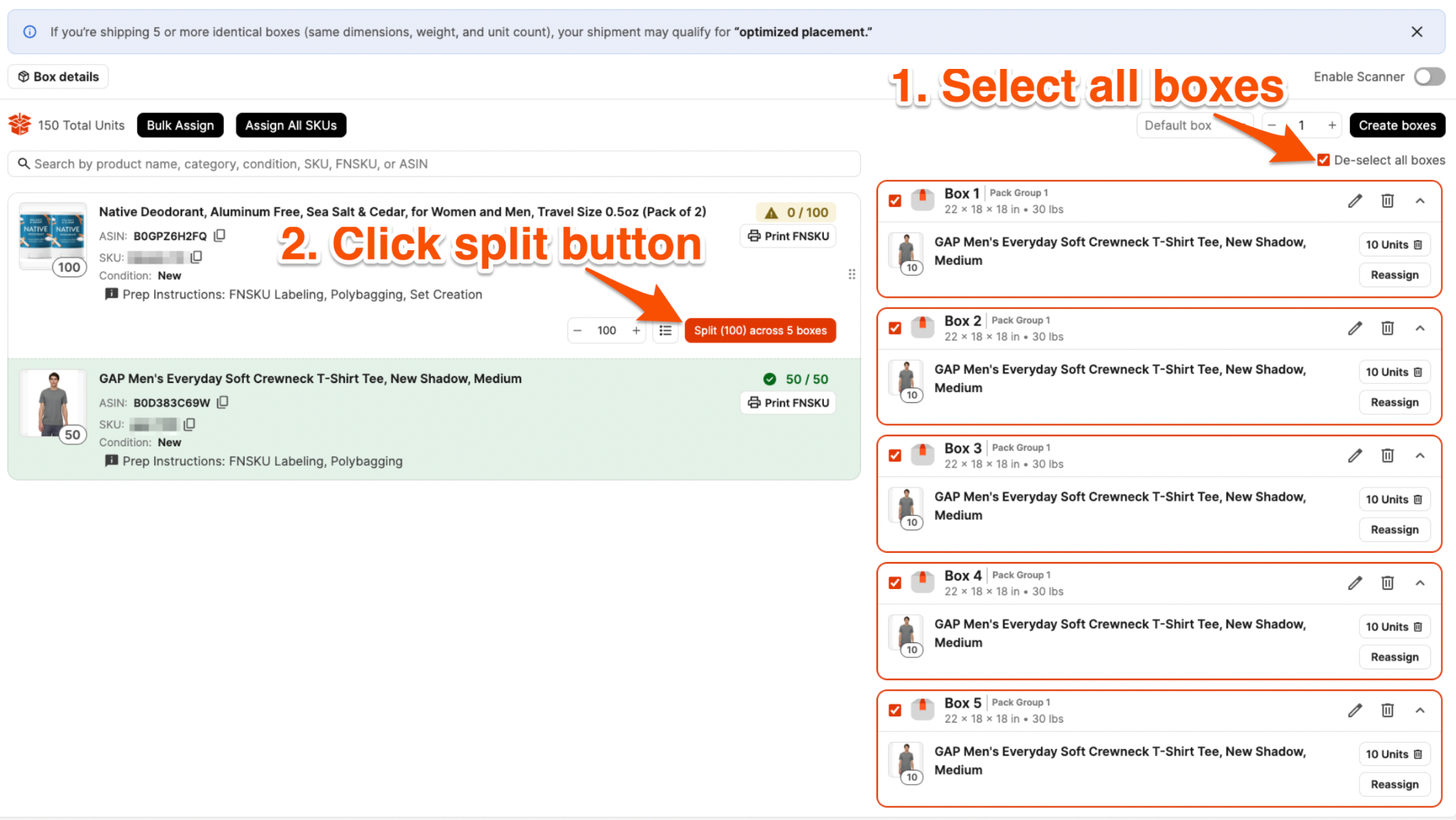
Keep boxes under 50 lbs to avoid potential check-in delays and warnings from Amazon warehouse staff.
After you submit your box details, you'll see the placement options Amazon offers for your shipment. The optimized option will show $0 in placement fees when available.
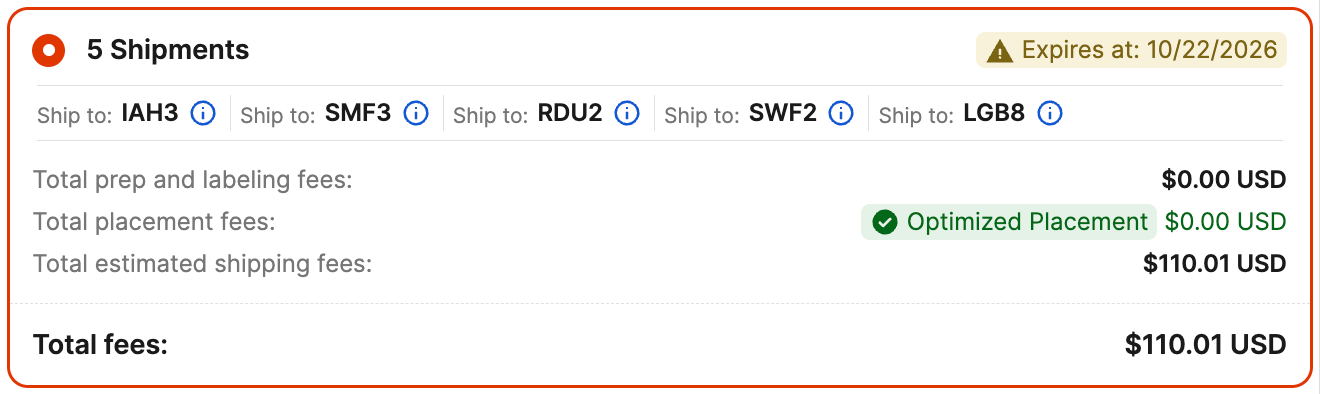
Keep in mind that your actual shipping costs and savings depend on the shipment and the options Amazon provides. It’s always a good idea to compare costs and choose optimized placement when it makes sense.
4. Print Labels & Ship Your Boxes
Once you've confirmed your shipment, you're almost done!
Boxem will provide the labels needed to send your boxes to Amazon. Print the corresponding UPS shipping label and FBA box label for each box, then attach both to the outside of the correct box.
After labeling everything, all that’s left to do is drop off your boxes with UPS and wait for Amazon to receive and process your inventory.
Make Your First FBA Shipment Easier with Boxem
Your first FBA shipment doesn't have to be complicated. Gather your supplies, list your products, and follow Boxem's guided shipment steps.
From creating listings to packing boxes and printing labels, Boxem brings the process together in one place. And by choosing optimized placement when it's available and cost-effective, you can reduce placement fees and avoid unnecessary inventory transfers.
Once you've completed your first shipment, you'll have a repeatable process you can use as your Amazon business grows.
Want to see how to create an optimized shipment in Boxem? Watch the free step-by-step guide on YouTube:
Subscribe to our Weekly Newsletter
No spam, notifications only about new products, updates.

Get Started Today,
Ship Smarter with Boxem
Boxem streamlines all operations so you can focus on what truly matters.
.png)